Email Notifications
Setting up email notifications
Section titled “Setting up email notifications”-
Go to your form settings
Section titled “Go to your form settings”In the Formtress dashboard, navigate to the form you want to set up email notifications for and click on it to go to the form details page. Then click on the Connect button in the top right corner.
Alternatively, you can navigate directly to the Connect page, select Email from the list of integrations, and select your form from there.
-
Set up your email notification
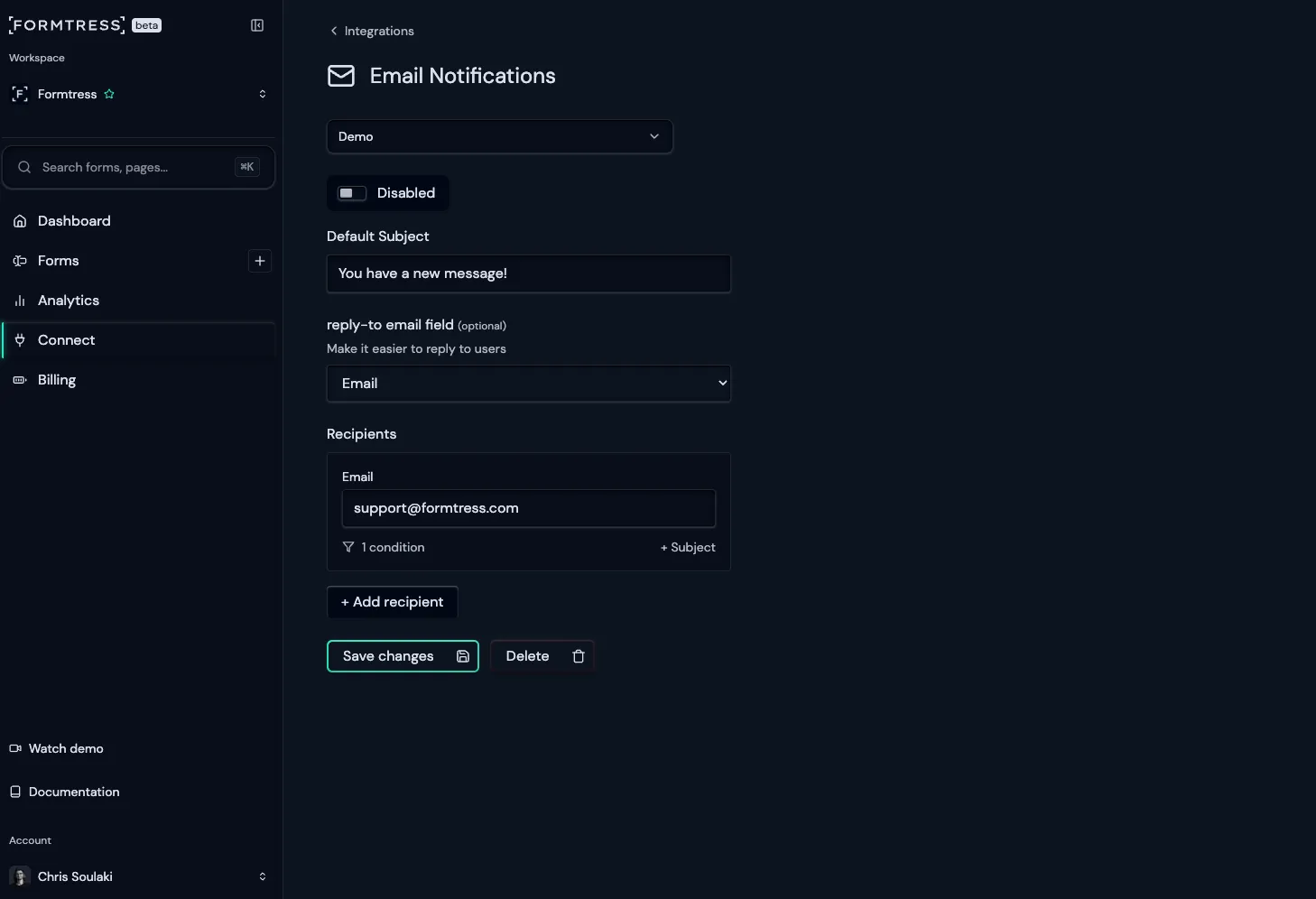
Section titled “Set up your email notification”Fill out the form to set up your email notification:
Default Subject: The subject line for the notification email.
Reply-to email: Allows you to directly reply to the submitter’s email address from the notification email.
Recipients: The email addresses where you want to receive notifications for new form submissions. You can set up conditions based on form field values and custom subject lines for each recipient.
-
Save your notification settings
Section titled “Save your notification settings”Once you’ve filled out the form, click the Save button to save your settings.
-
Test your notification settings
Section titled “Test your notification settings”After saving, it’s a good idea to test your notification settings by submitting a test entry through your form.